Category: Product

  • Accessibility @Skilltype Part 1: Good A11Y is Good UX

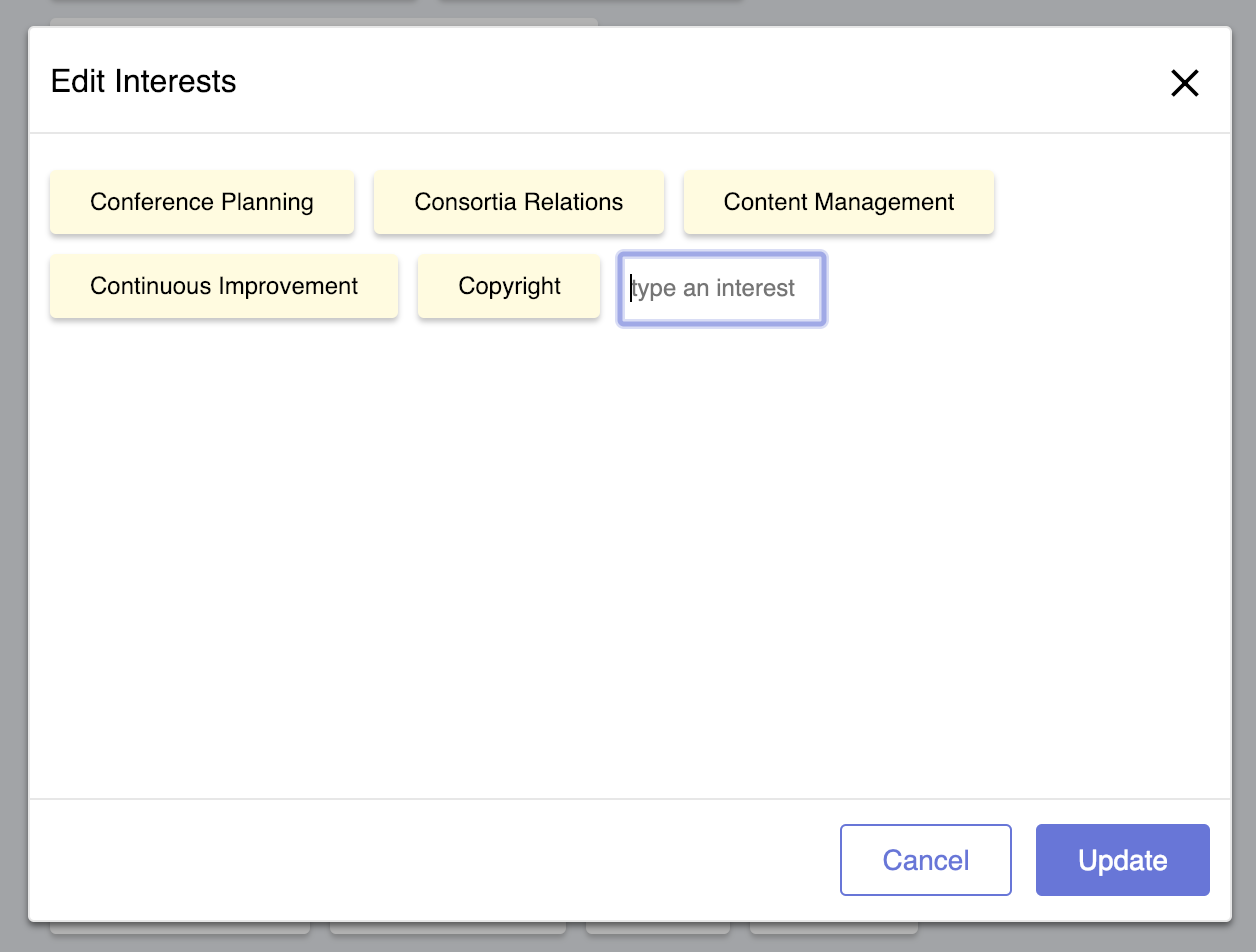
     Skilltype’s v3 tagEditor
    Skilltype’s v3 tagEditor

    At the heart of Skilltype is a spirit of inclusion. We know that information professionals – those who work in libraries, who conduct scholarly research, who manage knowledge systems in our institutions – are vital to the survival and dissemination of truth. We make tools to help these professionals do their job well, and it’s important that our tools invite, include, and serve all those who might benefit from their use. That’s why we are committed to making our software accessible to users of all levels of ability.

    The following posts describe the considerations and challenges we faced when developing with accessibility in mind, describes some architectural strategies for building accessible components in React, and then walks through accessibility implementations in two of our components, MenuBar and TagListPicker.

    We’re not Accessibility experts. We’ve read a lot of blog posts about Accessibility and looked through various standards documents, but we don’t claim to have the depth of experience of, say, an Accessibility professional. However, we weren’t going to let that be an excuse to “leave accessibility for later,” which is a tempting path [1]. Instead, we decided to approach accessibility (A11Y) the way we approach user experience (UX). None of us have degrees in UX or call ourselves UX professionals, but like most teams building apps for web and mobile, UX is a top priority in our software design and we spend a lot of time discussing and testing it.

    Thinking about A11Y as UX is not trivial but it can be intuitive. The first step in our UX design is always mining our own sensibilities as web users. We ask ourselves questions like “does this make sense?”, “what would I expect to happen here”, “is this too much information on one screen”, etc. We use those sensibilities to make some best guesses that inform our interface design and behavior. We can do the same thing with A11Y with a little extra effort – first, we have to build some sensibility around using A11Y features by using the web the way someone with disabilities would.

    We began by familiarizing ourselves with the types of disabilities some of our users may have. The A11Y Project identifies four broad categories of accessibility: Visual, Auditory, Motor and Cognitive [2]. Each has its own specific set of guidelines and considerations, but there is also a lot of overlap. For example, if keyboard interaction is well-designed on your site, it will assist users with visual impairments using standard keyboard navigation as well as motor-impaired users using special control apparati. So, for the purposes of this post, we’ll focus on a blind or visually impaired user, but many of the analyses and strategies here can inform design and development for other accessibility needs.

    The W3C Web Accessibility Initiative (WAI) site provides some useful personas for users with disabilities [3]. Here’s an excerpt from their persona for Ilya, a senior staff member (of a fictitious organization) who is blind:

    • Ilya is blind. She is the chief accountant at an insurance company that uses web-based documents and forms over a corporate intranet and like many other blind computer users, she does not read Braille.

    • Ilya uses a screen reader and mobile phone to access the web. Both her screen reader and her mobile phone accessibility features provide her with information regarding the device’s operating system, applications, and text content in a speech output form.

    We know that responsible UX/UI design must address site or app functionality in the various browsers and platforms where users will encounter our work “in the wild” (Chrome, Firefox, iOS, Android, etc), so our next step was to identify the screen readers that our visually impaired users would use on our web app. For this, we looked to WebAIM, a non-profit organization out of Utah State University that compiles data every year on screen reader usage and demographics. We learned that the vast majority (> 80%) of users with disabilities used 3 screen readers: JAWS, NVDA and VoiceOver [4]. As JAWS is a commercial product with a non-trivial pricetag ($90/year), we opted to start with the free applications.

     Source:  WebAIM Screen Reader Survey, 2017
    Source: WebAIM Screen Reader Survey, 2017

    To educate ourselves, we watched some videos of users with disabilities actually using screen readers to interact with applications like email on their computers and phones, as well as navigate and use web sites like reddit (and even playing Mortal Kombat).

    We then installed and/or activated these applications on our own computers and spent some time using our computers and phones to browse the web. At first, it’s incredibly awkward and slow to do anything, especially on the phone, where the gestural metaphors are nearly all repurposed. One vlogger on Youtube who is blind and demoing screen readers on her phone even warns, “don’t activate VoiceOver on your iPhone until you know how to use it, or you won’t be able to turn it off” [5]. But after a few hours of experimentation and Googling, you should be able to proficiently navigate a website with only your ears and the keyboard. It’s very important to reach this level of proficiency with screen readers – you must begin to build a design intuition for alternative forms of interaction; over time, as you design, build, and test accessible interfaces, this intuition will mature and, ideally, be on par with your sense for visual design and usability.

    In Part 2, we’ll look at how React is particularly well suited for architecting accessible apps.

    Paul Hine is a senior developer at Skilltype.

  • December 2018 Product Update

    Happy holidays peeps :)

    We decided to use the time that you’d be away from your computers to work on our infrastructure. Here are a few highlights.

    User Roles

    Today, Skilltype views everyone the same. Everyone is limited to logging in, creating, editing, and viewing their profiles. We can also manage personal settings. But to prepare for the launch of organizations next month, we needed to create a way for the app to recognize that certain users (e.g. paying customers) have the permission to create and edit an organization on Skilltype (ROLE_ADMIN), whereas normal users will be limited to viewing the organization (ROLE_USER). Here’s a screenshot of our internal tools to manage user roles across the community. To access this dashboard, you have to be ROLE_SKILLTYPE_ADMIN.

    Unique IDs

    The second update you won’t see in your UX first-hand, but will position us to deliver a more responsive service over time is creating unique IDs for our vocabularies. Today, the skills, affiliations, and other tags you add to your profile lack unique IDs. In fact, all of those items are being managed in the front end of our web app. This means when one of our back end developers adds a new university as an affiliation, that addition is not reflected automatically on the front end until our front end dev syncs it.

    This is not scalable.

    With this update, we made two major improvements:

    1. Since we’re launching organizations soon, we took the extra time to work on the admin panel that enables organization admins to manage their organization. We decided to eat our own dog food and create an Org for Skilltype, where we can manage User Roles, but also manage our Vocabularies. Now, Valerie, Harlin, or anyone else on a support shift can add items to any vocabulary directly without having to request a dev to do it.

    2. When we add tags to a vocabulary from the front end now, they are dynamically synced with the back end. And when the Vocabularies API is called in other parts of the app (say, in an upcoming Opportunity page), that page will also be updated in real time.

    Props to Jobin on the back end and Jacob on the front end for putting in work on this over the holidays!

    Improved Tag Editor

    Since opening beta testing last month, there has been a two-way tie for most requested features: 1) being able to select and delete individual tags, and 2) the ability to see the available tags rather than type + auto complete.

     v1 Tag Editor. To delete one tag, you had to delete all of the tags that came after it. #Fail
    v1 Tag Editor. To delete one tag, you had to delete all of the tags that came after it. #Fail
     v2 Tag Editor. With select and delete.
    v2 Tag Editor. With select and delete.
     v3 Tag Editor. Split screen for select/delete and search/browse.
    v3 Tag Editor. Split screen for select/delete and search/browse.

    The final version is really a work of usability and accessibility art, thanks to our maestro Paul. We had about 80 messages in a Slack thread on the pros and cons and considerations of searching for tags, browsing for tags, supporting vocabularies with thousands of tags, and more. We settled on a split view that separates select/delete on the left, and filter/search/browse/select on the right. The mobile version doesn’t have a split view, but takes up a full screen width for each of the two sides you see on desktop.

    The latest version is being rolled out to beta testers in early January. Our QA process has slowed down for the holidays, but we’ll get back up to speed in the new year.

    Until next time!

    Team Skilltype

  • Building an Anti-Social Network

     Silent Disco at UCLA’s Powell Library. Credit:  UCLA Library
    Silent Disco at UCLA’s Powell Library. Credit: UCLA Library

    Earlier this year, someone on the leadership team at an ARL member library compared a prototype of Skilltype (then Libdot) to LinkedIn. The conversation focused on trying to figure out whether it was possible to use LinkedIn’s recruiter tools to replicate our offering. It was a natural comparison given the hypothesis of the prototype:

    If libraries could communicate what makes them unique, linked data would help people who identified with those traits more easily connect.

    This conversation revealed that our solution needed more refinement. but the answers won’t be found on social media. Take for example LinkedIn, and the impact social had on LinkedIn’s product strategy.

    There was a point in time when LinkedIn’s product management strategy was to do everything Facebook does but for a Professional relationships. If Facebook was walking off of a cliff, LinkedIn was there to follow. In no particular order: News Feed. Photos. Videos. Ads. Friending. Pages. Groups. Blah blah blah. There was some deviation in how they managed their developer communities. Facebook gave unfettered access to APIs to everyone and used the apps built on top of them to determine what they should build natively into the core Facebook offering. LinkedIn was always more conservative with developer policies, and sought instead to monetize their partner programs and individual user experience. Developers had to apply to use LinkedIn’s APIs, and the requirements were much stricter.

    Last week, the LinkedIn comparison reared its head again, but this time with less conviction than the last. A director of an iSchool asked us whether Skilltype was like LinkedIn for librarians. Since the comparison is natural to make for many people, I decided to write a post describing the differences between Skilltype and the professional social network. So here are seven ways we’re rethinking the online experience to get the best out of social in a work context.

    7 Differences Between Skilltype and LinkedIn

    1. Socializing vs. Working:

    2. Unlimited Access vs. Contextual Access

    3. Advertising Model vs. Subscription Model

    4. Focus vs. Interruption

    5. Employer Conflict vs. Employer Benefit

    6. Increasing the Relevance Ratio